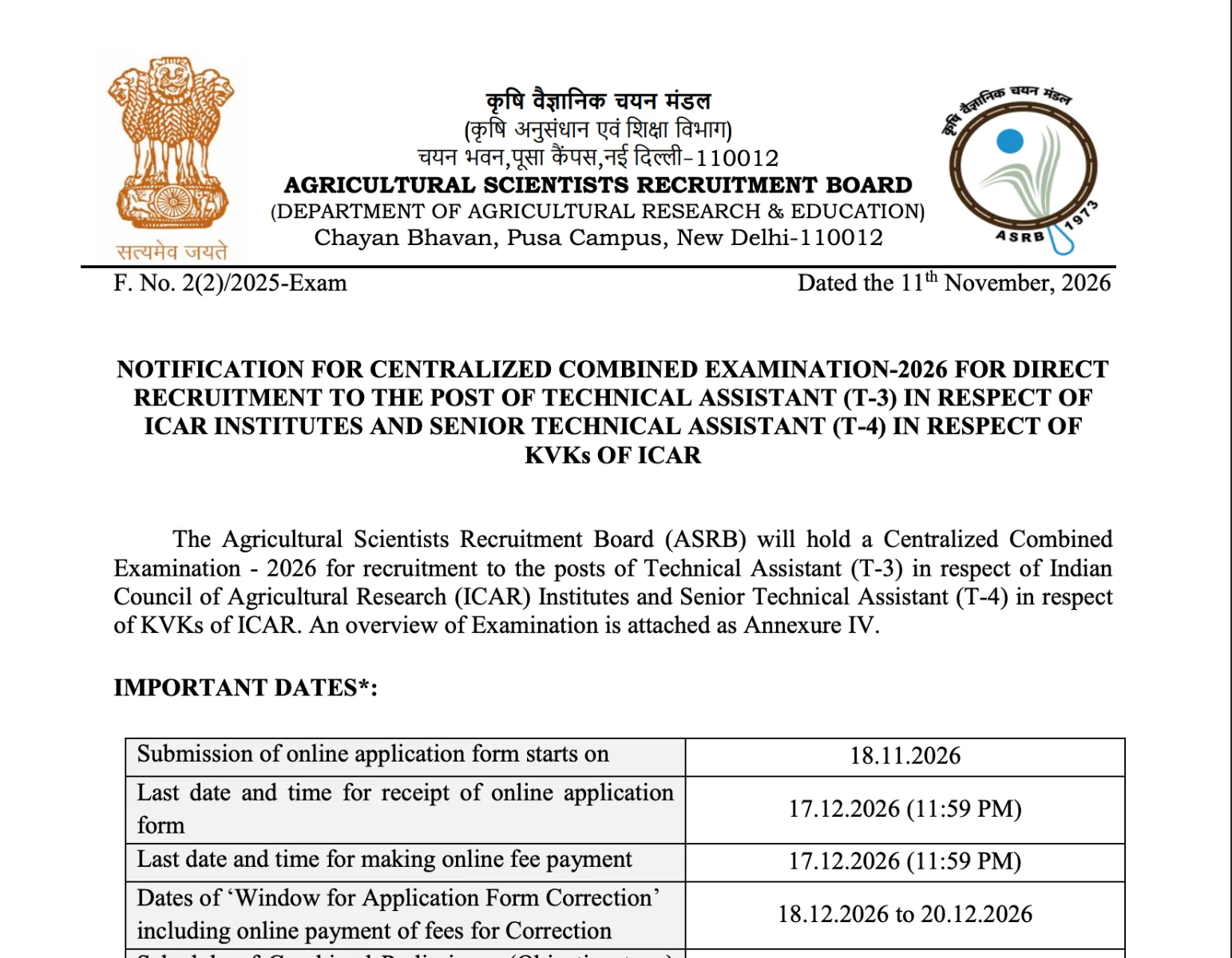
Candidates interested in ICAR Technical Assistant (T-3) and Senior Technical Assistant (T-4) Recruitment 2026 can submit their applications online through the official Agricultural Scientists Recruitment Board (ASRB) recruitment portal.
The application process is divided into three major parts:
- Part A: One Time Registration (OTR).
- Part B: Complete OTR Profile.
- Part C: Fill and Submit the Examination Application Form.
Follow the detailed instructions below to complete your application successfully.
Official Links & Direct Resources
Apply Online / Candidate Registration
Direct registration & application submission portalOfficial Conducting Authority Portal
Department & commission homepage for announcementsOfficial Document PDF
Official PDF circular / documentVisit
External authority resourceOfficial ASRB Website
Official department portalDirect Application Link
Official ASRB Application Portal:
https://apps.cbexams.com/AsrbT3T4jkljReg2026/Default.aspx
Official Candidate User Manual:
https://apps.cbexams.com/AsrbT3T4jkljReg2026/Content/docs/ASRBT3T42026CandidateUserManual.pdf
Part A: One Time Registration (OTR)
Candidates who have not previously registered on the ASRB portal must first create their One Time Registration (OTR) account.
Step 1: Open the ASRB Application Portal
Visit the official ASRB candidate portal using the link below:
https://apps.cbexams.com/AsrbT3T4jkljReg2026/Default.aspx
On the homepage, you will find two options:
- New Candidate – Create OTR ID.
- Candidate Sign In – Login with an existing OTR ID.
Click on Create your OTR ID to start the registration process.
Step 2: Enter Personal Information
Fill in the following details:
- Full Name.
- Father's Name.
- Mother's Name.
- Date of Birth.
- Gender.
Enter your name and other details exactly as mentioned in your Class 10 certificate.
The portal requires you to enter and confirm these details. Verify everything carefully before clicking Save & Continue.
Important: Your name, parents' names and date of birth cannot be changed after OTR registration.
Step 3: Verify Mobile Number and Email ID
Enter your active mobile number and email address.
- Enter your mobile number.
- Click on Send OTP.
- Enter the six-digit OTP received on your mobile.
- Verify your mobile number.
- Enter your email address.
- Request the email OTP.
- Verify your email address.
Both mobile number and email ID must be successfully verified.
Step 4: Enter Identity Document Details
Select an accepted Government-issued photo identity document.
Available options include:
- Aadhaar Card.
- PAN Card.
- Passport.
- Voter ID.
- Driving Licence.
- Other accepted Government-issued Photo ID.
Enter the identification number exactly as printed on the selected document.
Keep the same identity document ready because you will need to upload it in your OTR profile.
Step 5: Complete Live Photograph Verification
The portal requires a live photograph during OTR registration.
Follow these instructions:
- Click on Start Camera.
- Allow browser camera permission.
- Position your face inside the displayed frame.
- Keep the camera at eye level.
- Use a plain, light-coloured background.
- Remove caps and dark glasses.
- Ensure both ears are visible.
- Capture your photograph.
- Click Verify Photo.
The photograph should be clear because it will be used on your admit card and examination attendance records.
Candidates without a webcam can use the mobile camera option provided on the portal.
Step 6: Create Your Password
Create a secure password for your ASRB account.
The password must contain:
- At least one uppercase letter.
- At least one lowercase letter.
- At least one number.
- At least one special character.
Password length: 8–72 characters.
Enter the password again for confirmation.
Select an account recovery question and provide its answer. Accept the declaration and click Create Account & Get OTR ID.
Step 7: Save Your ASRB OTR ID
After successful registration, the portal generates your unique ASRB OTR ID.
Save the following details carefully:
- ASRB OTR ID.
- Registered Mobile Number.
- Registered Email ID.
- Password.
Your OTR ID will be required for completing the remaining application process.
Part B: Complete Your OTR Profile
Creating an OTR ID alone is not sufficient. Candidates must complete their full profile before applying for the examination.
Step 8: Login to the Candidate Portal
Return to the ASRB candidate portal.
Enter any one of the following:
- ASRB OTR ID.
- Registered Mobile Number.
- Registered Email Address.
Enter your password and captcha, then click Sign In.
You can also use the OTP login option if available.
Step 9: Fill Personal Details
Complete the personal information section.
You will be required to provide details such as:
- Marital Status.
- Category (General, OBC-NCL, SC, ST or EWS).
- PwBD Status, if applicable.
- Ex-Servicemen Status, if applicable.
- Other required declarations.
Enter category certificate information wherever applicable.
Answer the questions relating to previous penalties or legal proceedings truthfully.
Step 10: Enter Address Details
Enter your permanent and correspondence addresses.
Provide:
- House Number and Street.
- Village / Town.
- Tehsil.
- District.
- State.
- Post Office.
- PIN Code.
Select whether your correspondence address is the same as your permanent address.
Also select whether your residential area is Rural or Urban, as required by the portal.
Click Save & Continue.
Step 11: Enter Educational Qualifications
Fill in your educational details carefully.
A. Class 10 / Matriculation Details
Enter:
- Education Board.
- School Name.
- Roll Number.
- Certificate Number.
- Passing Year.
- Passing Month.
- Maximum Marks.
- Marks Obtained.
- Percentage or CGPA.
B. Graduation Details
Enter your essential qualifying degree information.
- Degree Name.
- Specialisation / Subject.
- University Name.
- State of University.
- ICAR Accreditation Status, wherever applicable.
- Course Duration.
- Degree Completion Status.
- Result Declaration Date.
- Registration / Enrolment Number.
- Marks, Percentage or OGPA.
Enter your score according to your university's official grading and conversion formula.
C. Post-Graduation Details
Post-graduation information is optional. Candidates can add their Master's degree or higher qualification if applicable.
Class 12 details are not required in the OTR educational qualification section for this examination.
The qualifying degree must be completed on or before 17 December 2026.
Step 12: Complete Twin Declaration
The portal asks candidates whether they have a twin brother or sister.
Select the appropriate option:
- Yes, if you have a twin sibling.
- No, if you do not have a twin sibling.
If you select Yes, provide the additional details requested by the portal.
Accept the declaration and proceed.
Step 13: Upload Required Documents
Upload scanned documents in the formats and sizes specified by the portal.
| Document | Required Format | File Size |
|---|---|---|
| Signature | JPG/JPEG | 10–100 KB |
| Photo ID Proof (Front and Back) | 20–500 KB | |
| Class 10 Certificate / Marksheet | 20–500 KB | |
| Bachelor's Degree / Provisional Certificate | 20–500 KB | |
| Category Certificate, if applicable | 20–500 KB | |
| PwBD / Ex-Servicemen Certificate, if applicable | 20–500 KB |
Your live photograph is already captured during OTR registration.
Ensure that all scanned documents are readable and not password-protected.
Step 14: Review and Submit OTR Profile
Before submitting your OTR profile:
- Check personal information.
- Verify address details.
- Check educational qualifications.
- Verify category and reservation details.
- Review uploaded documents.
- Accept the required declarations.
Click Submit the OTR and Go to Dashboard.
Confirm the submission when prompted.
Your OTR profile is now submitted. You can proceed to the examination application.
Part C: Apply for ICAR T-3 & T-4 Examination 2026
After successfully submitting your OTR profile, follow these eight steps to complete the examination application.
Step 15: Select the Examination
Open your candidate dashboard.
- Click on the Exams section.
- Find Centralized Combined Examination – 2026 for T-3 & T-4.
- Click on Apply.
Your personal and educational details will automatically appear from your submitted OTR profile.
Step 16: Select Your Functional Group
Select only ONE Functional Group / Subgroup according to your educational qualification.
The portal displays available functional groups and their respective vacancies.
For example:
- Agriculture / Horticulture.
- Home Science / Community Science.
- Animal Science.
- Fisheries Science.
- Civil Engineering.
- Agricultural Engineering.
- Electrical Engineering.
- Electronics & Instrumentation Engineering.
- Library / Information Science.
- Information Technology.
Select the functional group for which you fulfil the prescribed educational qualification.
Important: Candidates can apply for only one functional group, even when they are eligible for multiple groups.
Click Save & Continue.
Step 17: Select Your Post
Choose the post for which you want to apply.
Three options are available, subject to the vacancies in your selected functional group:
- Technical Assistant (T-3) Only.
- Senior Technical Assistant (T-4) Only.
- Both T-3 and T-4.
Candidates applying for both posts will have to provide their order of preference in a subsequent step.
The portal also asks whether you are an in-service ICAR technical employee or have worked as a Research Associate (RA) / Senior Research Fellow (SRF) in ICAR projects.
Answer these questions correctly according to your eligibility and supporting documents.
Click Save & Continue.
Step 18: Complete the Eligibility Check
The portal automatically checks your eligibility using the information available in your OTR profile.
The eligibility verification includes:
- Successful OTR submission.
- Required educational qualification.
- Age eligibility.
- Applicable age relaxation.
- Required document availability.
If all conditions are satisfied, the portal displays the eligible status.
Click Eligible – Continue to proceed.
If any information is incorrect or missing, correct the relevant OTR details, submit the updated profile and repeat the eligibility check.
Step 19: Select Post Preference
Candidates applying for both T-3 and T-4 must provide their order of preference.
For example:
| Preference | Post |
|---|---|
| First Preference | Senior Technical Assistant (T-4) |
| Second Preference | Technical Assistant (T-3) |
Choose your preferred order carefully.
Important: Once submitted, the order of preference cannot be changed subsequently.
Candidates applying for only one post will not need to rank both posts.
Step 20: Select Preliminary Examination Centres
Candidates must select FIVE examination centres for the Preliminary Computer Based Test (CBT).
Select the preferred state and city in order of preference.
Important instructions:
- Choose five different centres.
- Select the state first and then the city.
- Not more than two preferences can be selected from the same state.
- Centre allotment depends on availability and capacity.
- Examination centre preferences cannot be changed later.
Review your choices before proceeding.
Step 21: Select Mains Examination Centres
Candidates must select TWO examination centres for the Mains CBT.
Choose your preferred state and city in order of preference.
Verify both selections carefully because centre allotment is subject to availability.
Click Save & Continue.
Step 22: Pay the Application Fee Through Bharatkosh
The application portal displays your applicable fee according to your category and selected posts.
To make payment, click Go to the bank payment page.
Follow the instructions below:
- Visit https://bharatkosh.gov.in/
- Click on Quick Payment / Non-Registered Users.
- Select Individual under Depositor Category.
- Select Agriculture as the Ministry.
- Under Purpose, select Examination/Certificate fee for ARS/NET/SMS/STO/FAO/AO.
- Verify PAO: 000001 – PAO (Sectt-I).
- Verify DDO: 216968 – Addl. ASRB, Chayan Bhavan.
- Enter the applicable amount.
- Enter the appropriate payment remarks:
- Fee for TA (T-3) – 2026.
- Fee for STA (T-4) – 2026.
- Fee for TA (T-3) & STA (T-4) – 2026.
- Enter the captcha and click Add.
- Fill in the depositor details.
- Complete the online payment using Debit Card, Credit Card, Net Banking or UPI.
- Download or print the successful payment receipt.
Note: Fee once paid through Bharatkosh is non-refundable. Candidates exempted from the application fee can proceed with the NIL fee option displayed in the application portal.
Step 23: Upload Payment Receipt
After successful payment, return to your ASRB application dashboard.
Enter the following payment details:
- Bank Transaction / Reference Number.
- Payment Date.
- Amount Paid.
- Bank / Payment Mode.
- Payment Receipt.
Upload the receipt in PDF or JPEG format, up to 500 KB.
Verify the information and click Save Payment & Continue.
Step 24: Review and Final Submit
This is the final stage of the application process.
Carefully check all information displayed on the application review page.
Verify:
- Personal Details.
- Educational Qualifications.
- Selected Functional Group.
- Selected Post(s).
- Post Preference Order.
- Preliminary Examination Centres.
- Mains Examination Centres.
- Application Fee.
- Payment Details.
Accept the final declaration and click Submit Application.
Confirm that your application has been successfully submitted.
After final submission, your application will be locked and can be modified only during the officially notified correction window.
Step 25: Download the Final Application Form
After successful submission:
- Return to your candidate dashboard.
- Open the Exams section.
- Find your submitted T-3 & T-4 application.
- Click View / Print Application.
- Download the final application PDF.
- Save your Application Number and OTR ID.
- Keep the payment receipt and application printout safely.
Your application process is complete only after successful final submission.
Important Instructions While Applying
- Complete all three parts: OTR, OTR Profile and Examination Application.
- Use your own active mobile number and email ID.
- Enter personal details exactly as recorded in your certificates.
- Select only one functional group.
- Select T-3, T-4 or both according to your eligibility.
- Verify post preferences before submission.
- Select examination centres carefully.
- Save the Bharatkosh payment receipt.
- Do not assume that OTR registration or fee payment alone completes your application.
- Download your final submitted application form.
Important Links
| Particulars | Link |
|---|---|
| Official ASRB Website | https://asrb.gov.in/ |
| Online Application Portal | https://apps.cbexams.com/AsrbT3T4jkljReg2026/Default.aspx |
| Candidate User Manual | https://apps.cbexams.com/AsrbT3T4jkljReg2026/Content/docs/ASRBT3T42026CandidateUserManual.pdf |
| Bharatkosh Payment Portal | https://bharatkosh.gov.in/ |
Application Deadline: 17 December 2026, 11:59 PM.
For technical assistance:
- Helpline: 011-25846166 / 25848172 (Extension 314).
- Email: t3t42026@asrb.gov.in.
Disclaimer: Candidates should follow the official ASRB advertisement and candidate user manual. The instructions displayed on the live application portal and the official notification will prevail in case of any discrepancy.